Relevant to:
- Admin Briq.app users
Would you like to receive data from Briq and send requests to any URL without the hassle of writing code or running servers? This is possible from now on by using Webhooks by Zapier. The only thing you need is a Zapier Starter Plan & Briq account.
Content of this article
- What is Zapier?
- What is a Webhook?
- What are the common terms we will be using in this article?
- What is possible with Webhooks by Zapier?
- What information is sent over via the Webhook?
- Next steps
- Examples of Zaps
What is Zapier?
Zapier is an online automation tool that connects Briq to your favorite apps, such as Gmail, Slack, Mailchimp, and more. You can connect two or more apps to automate repetitive tasks without coding or relying on developers to build the integration. It's easy enough that anyone can build their own app workflows with just a few clicks. Learn more about Zapier here.
What is a Webhook?
Webhooks are automated messages sent from apps when something happens. They have a message - or payload - and are sent to a unique URL—essentially like an app's phone number or address. Learn more on Webhooks by Zapier here.
What are the common terms we will be using in this article?
Zap: A Zap is an automated workflow between Briq and another app. For example, you may have a Zap that sends an evaluation email from Mailchimp 6 hours after a booking has been carried out. Zaps consist of at least two parts: a trigger and one or more actions.
Trigger: A trigger is the event in Briq that starts the Zap. Once you set up a Zap, Zapier will monitor Briq for that event to happen. For this example, the Zap is triggered 6 hours after the check-in time of a booking.
Action: An action is the event that completes the Zap. For this example, the action is sending the evaluation mail from Mailchimp.
What is possible with Webhooks by Zapier?
As mentioned, a Zap is made up of two parts, a trigger and an action (if this, then that…). At the moment, Briq provides the following triggers:
- When a new booking is made
- When a booking turns into an expired booking
- When a change has been made to a booking
- When a booking gets a new status
- When it is X hours before the check-in date and time of a booking
- When it is 6 a.m. of the check-in date of a booking
- When the booking is marked as checked-in
- When the booking is carried out
- When it is X hours after the check-in date and time of a booking
- When a new user is created in Briq.app
- When a new customer is created in Briq.app
- When the contact details of a customer have changed
What information is sent over via the Webhook?
When you use Webhooks by Zapier, Briq can send over a lot of information to the chosen app. We call this information the ‘payload’. We have divided the payload into a couple of sections; Booking, Customer, and User. You can view the entire payload via this link.
Next steps
When you have decided to get started with Webhooks by Zapier, sign up for an account here. Learn more about Zapier’s pricing plans here. You need at least the Starter Plan to allow for Connections Via Webhooks.
Create a Zap
Before you create a Zap, first think about what you want to automate. Then you can start creating your Zap. View this video tutorial by Zapier for a step-by-step guide on how to create a Zap.
There are a couple of things to consider while creating a Zap with Webhooks for Briq.
When selecting the App Event at step 1, Trigger, choose “Webhooks by Zapier”
Then, select “Catch Hook” at Trigger Event
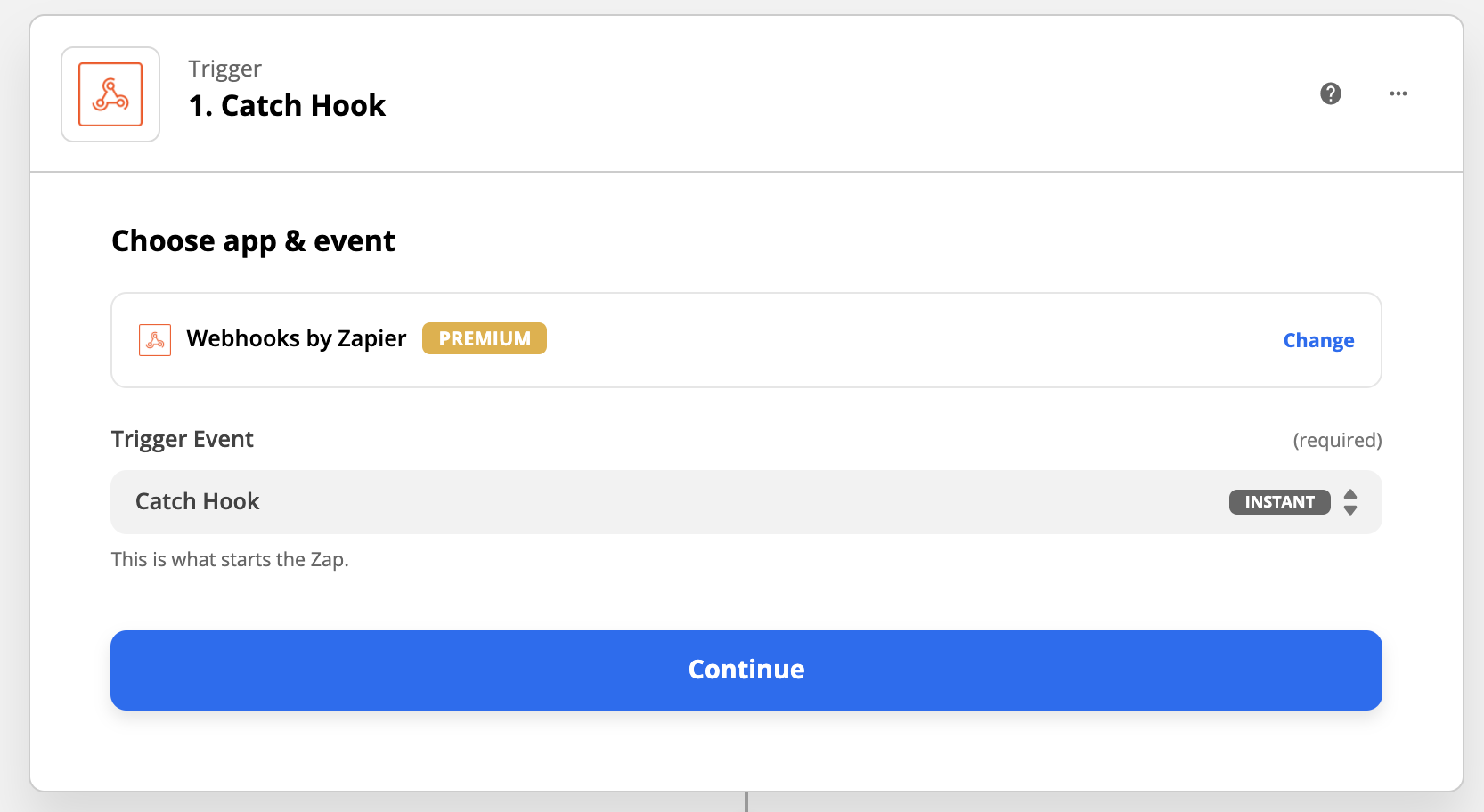
When you click on Continue, Zapier will create and show a Custom Webhook URL. Please forward this Custom Webhook URL to Briq’s Support team, along with the Trigger moment (as mentioned in the overview above) you want to include in this specific Zap. We will then paste this URL at the applicable Trigger in Briq’s settings. You can continue with the following steps when we have confirmed that the URL is pasted into Briq.
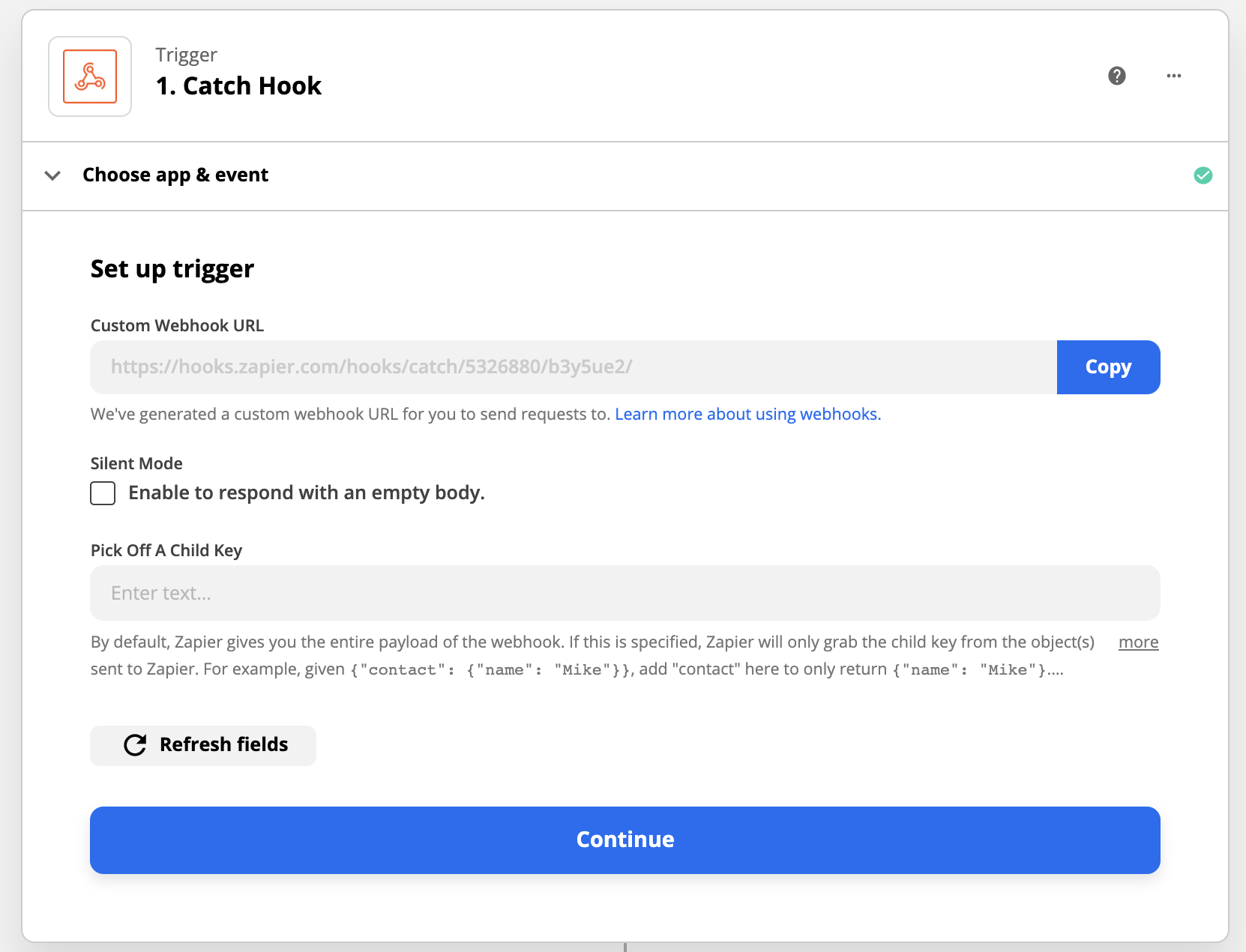
In the following step, where you will test the trigger, you will have to create an example of a situation where this Zap will be used. For example, if you are creating a Zap for the trigger “When a new booking is made”, you will have to create a new booking (either online or admin) to be able to test the trigger. Please note that this trigger has to be made after we pasted the URL, as data from the past cannot be used for the test. If the test was successful, it shows “We found a request!”. All the information you will then see is what we can ‘the payload’. The payload is all the information available that you will be able to use in the action.
Then, you select the app you want to use for the Action. There are about 3000 apps included in Zapier, so you can only imagine the possibilities!
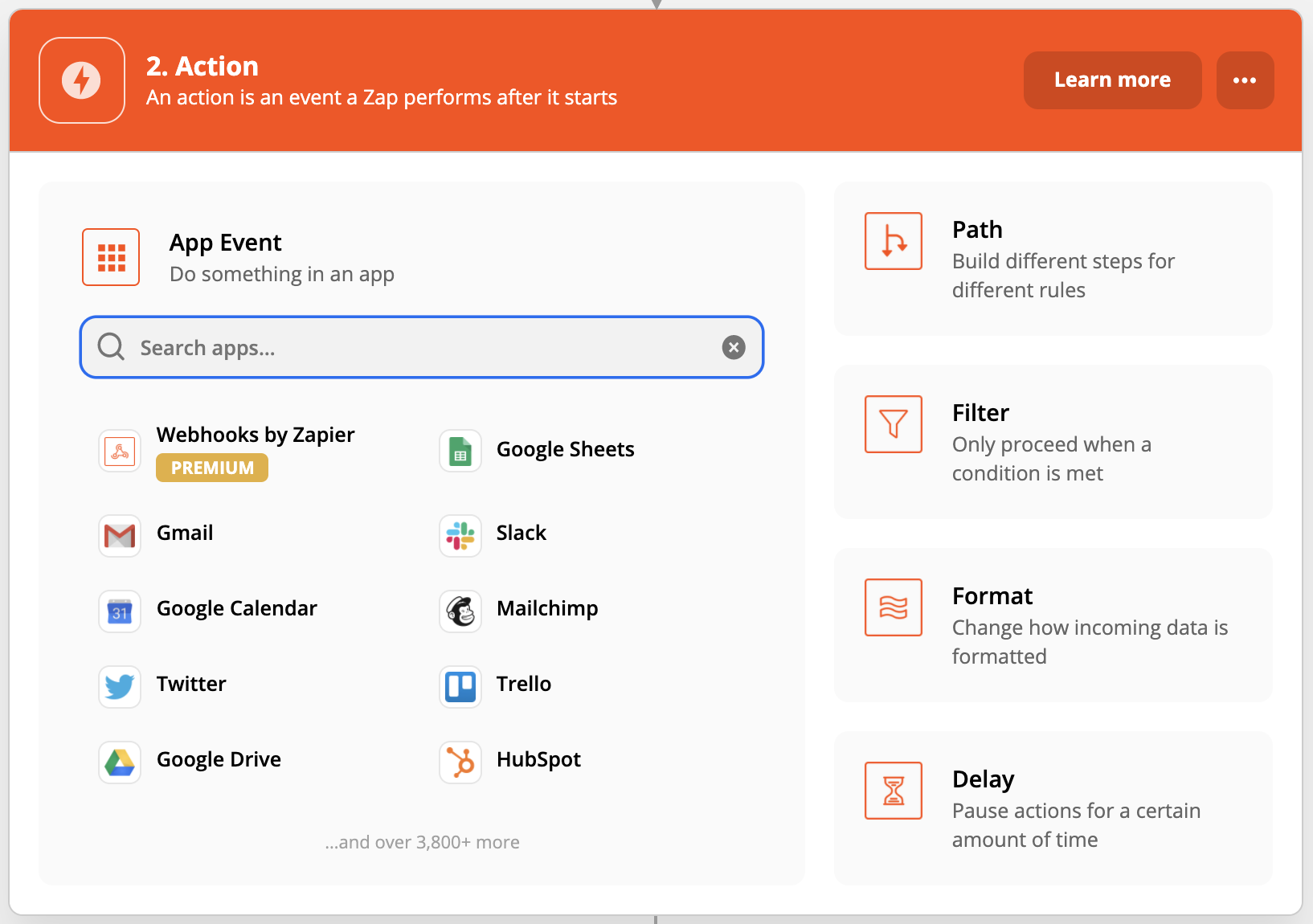
The next steps are different per app. So follow these app-specific instructions and then you’re ready to test the Zap.
When you’re happy with the Zap, you’re all set to turn on the Zap!
Examples of Zaps
To give you some inspiration on what you can use the Webhooks by Zapier for, we have thought of some examples that you might consider useful.
When a new booking is made (trigger), I want to follow up with an extra email via Gmail requesting the details of all participants (action).
When an Active booking turns into an Expired booking (payment failed/booking not finished) (trigger), I want to send them a follow-up email using Mailchimp (action).
6 hours before the check-in time of a booking (trigger), I want to send a text message (for example via Message Bird or Twilio) to the customer’s phone number to remind the customer of their booking (action).
12 hours after the check-in time of a booking (trigger), I want to send an evaluation survey mail using Mailchimp to the customer’s email address (action).
At 6 a.m. on the day the booking takes place (trigger), I want to sync those booking details to Google Calendar (action). Please note that this is a one-time synchronization. When changes are made to the booking on this day, this will not be synced.
If a new customer is created in Briq.app (who accepted to be updated by email) (trigger), I want to add this contact to my newsletter group in Mailchimp (action).
When a new booking is created with the word “Kids Party” in the email subject (trigger), I want to automatically send an email via Gmail with a Google Form attached that requests the name of the child and birthday to prepare for the cake and table decoration (action).
12 hours before the check-in time of a booking (trigger), I want to send a reminder email via Gmail that informs the customer with some important information (action).
X hours after the check-in time, when the booking was not marked as checked in (but remains as ‘Open’) (trigger), send a “We missed you” email to the customer (action).
Should you have any questions about setting up a Zap, you can always contact Zapier’s Support Centre and Department here. If you’d like help with thinking of the best way to create a Zap for your specific situation, please feel free to reach out. Good luck!
Was this article helpful?
That’s Great!
Thank you for your feedback
Sorry! We couldn't be helpful
Thank you for your feedback
Feedback sent
We appreciate your effort and will try to fix the article