Relevant to:
- Admin Briq.app users
- Employee Briq.app users
Do you already work with unTill, or are you interested in using Briq in combination with a Point of Sale (POS) system? In that case, keep on reading! In this article we'll look into the details of this integration, as well as a step-by-step guide on integrating unTill with Briq.
Content of this article
What is unTill?
unTill has been developing and delivering software for the hospitality industry for over twenty years. Whether it’s for restaurants, bars, hotels, events, leisure or take-away, unTill provides you with user-friendly software with which you keep a grip on and have a clear overview of your business and which helps you save time. Combining online booking software with unTill's point of sales capabilities will give you the best of both worlds.
How does the integration work?
In an integration, some aspects of two different systems are linked or synchronized. This is also the case with the integration between Briq and unTill.
In this specific case, an order will be created in unTill at the moment you mark a booking as checked-in in Briq.app. From this moment, you can continue to manage this booking in your unTill system. You can add their F&B order here, and you will have all of their booked products and services in one overview.
This will also provide you with an overview of all revenue streams in one system. It saves time for your frontline employees, as all bookings and payments will be synchronized. In addition, this integration will improve your customer experience as all of their purchases are on one receipt.
Next steps
Are you interested in using this integration, but don't have an account with unTill yet? Click on this link to get started.
When you've created your account, you will get the following information:
- Username
- Password
- Hostname
- Port number
- Database
You will need this information to activate the integration, so store this data somewhere.
If you already have an account, just follow these steps below and you'll be integrated quickly.
Connecting unTill to Briq.app
- Log in to Briq.app
- Click on Settings
- Click on Integrations
- Click on Details on the unTill tile
- Click on Connect
- Fill in the following sections with the correct data from your unTill account:
- Username
- Password
- Hostname
- Port number
- Database
- Click on Save
- Reopen the unTill tile by clicking on Details
- At the rules of 'Payment method' and 'Sales area', click on the green toggle on the right to disable the default settings.
- Don't you have a Payment method / Sales area for the Briq Bookings yet? Create these first in unTill before mapping them in Briq.app.
- Click on the grey bar of 'Select option' and choose the correct option for the payment method (the payment method in unTill that will be used for all payments coming from Briq) and sales area (the dedicated area in unTill where we place the 'order' from Briq).
- Click on Save. The integration has now been activated, but there is one more thing you need to do before it works perfectly.
- To ensure Briq and unTill can synchronize the bookings, you have to match the products in Briq.app to your products in unTill.
- Don't you have products in unTill yet? Create the products first before mapping them in Briq.app.
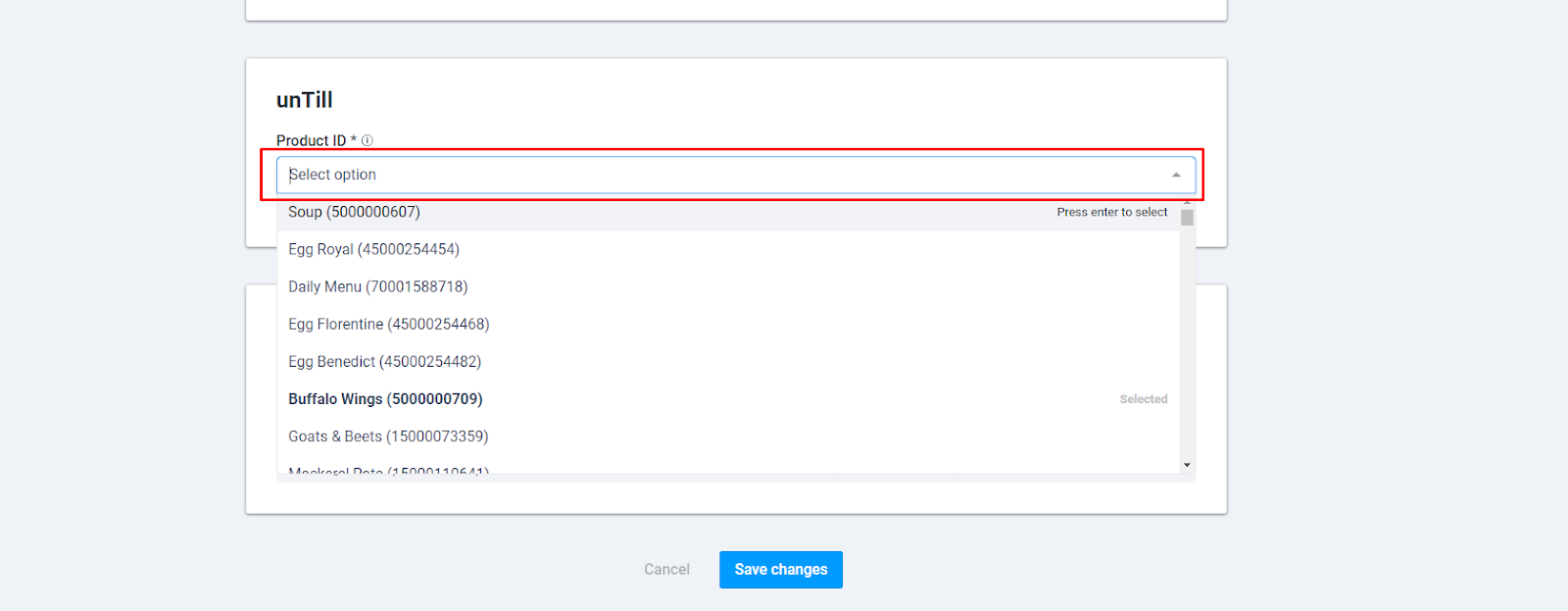
- When creating or editing a product in Briq, scroll down until you see the unTill section. Find the applicable product in the drop-down menu. Click on Save changes to ensure the change is saved.
That's it, you’ve integrated unTill and Briq!
From now on, bookings from Briq.app will be converted into an order in unTill at the moment you mark a booking in Briq.app as checked-in. As this action is crucial for this integration to work, make sure your entire team who deals with Briq.app is aware of this.
Should you have any questions about this topic, please do not hesitate to contact us via support@briqbookings.com or in the chat in Briq.app.
Was this article helpful?
That’s Great!
Thank you for your feedback
Sorry! We couldn't be helpful
Thank you for your feedback
Feedback sent
We appreciate your effort and will try to fix the article