Relevant to:
- Admin Briq.app users
Do you already work with Lightspeed, or are you interested in using Briq in combination with a Point of Sale (POS) system? In that case, keep on reading! This article will look into the details of this integration, as well as a step-by-step guide on integrating Lightspeed Restaurant (K-Series) with Briq.
Content of this article
What is Lightspeed K-Series?
Lightspeed Restaurant Series K is a point-of-sale system. It allows you to create orders, have your guests pay on location, and provide them with a receipt. Reporting and exporting functionalities grants the financial department an overview of the revenue stream afterward. With Lightspeed you can empower your staff with an intuitive system, reduce wait times for diners and streamline ordering with a full-service point of sale that makes any task faster and easier to do.
Combining online booking with Lightspeed's point of sales capabilities will give you the best of both worlds.
How does the integration work?
In an integration, some aspects of two different systems can be linked or synchronized. This is also the case with the integration between Briq and Lightspeed.
In this specific case, an order will be created in Lightspeed at the moment you mark a booking as checked-in in Briq.app. From this moment, you can continue to manage this booking in your Lightspeed K-Series system. You can add their F&B order here, and you will have all of their booked products and services in one overview.
This will also provide you with an overview of all revenue streams in one system. It saves time for your frontline employees, as all bookings and payments will be synchronized. In addition, this integration will improve your customer experience as all of their purchases are on one receipt.
Next steps
Have you decided you would like to use this integration, but don't have an account with Lightspeed K-Series just yet? Click on this link to get started!
If you already have an account, just follow these steps below and you'll be integrated quickly.
Connecting Lightspeed K-Series to Briq.app
- To do's in Lightspeed
Before activating the integration in Briq.app, there are a few things you need to set up in your Lightspeed account.- Open your Lightspeed back-end application
- Create a new table with a unique name. We would suggest something like "Briq orders". This table will be used to place the orders from Briq.
- Create an accounting group called "Briq products", if you want to have everything synced in one default group.
- Create a payment method for Briq and call it something like "Briq pay" with code "BRIQ" and payment method type "Other".
- Create an account profile for Briq called "Briq" with code "BRIQ".
Please note: You have to use these names for the profile in order for the integration to work.
Do you need some extra help here? Please check out Lightspeed's Support Centre for additional help.
- To do's in Briq.app
When you've finished all steps in the Lightspeed application, you can now activate the integration in Briq.app.- Log in to Briq.app
- Click on Settings
- Click on Integrations
- Click on Details on the Lightspeed K-Series tile
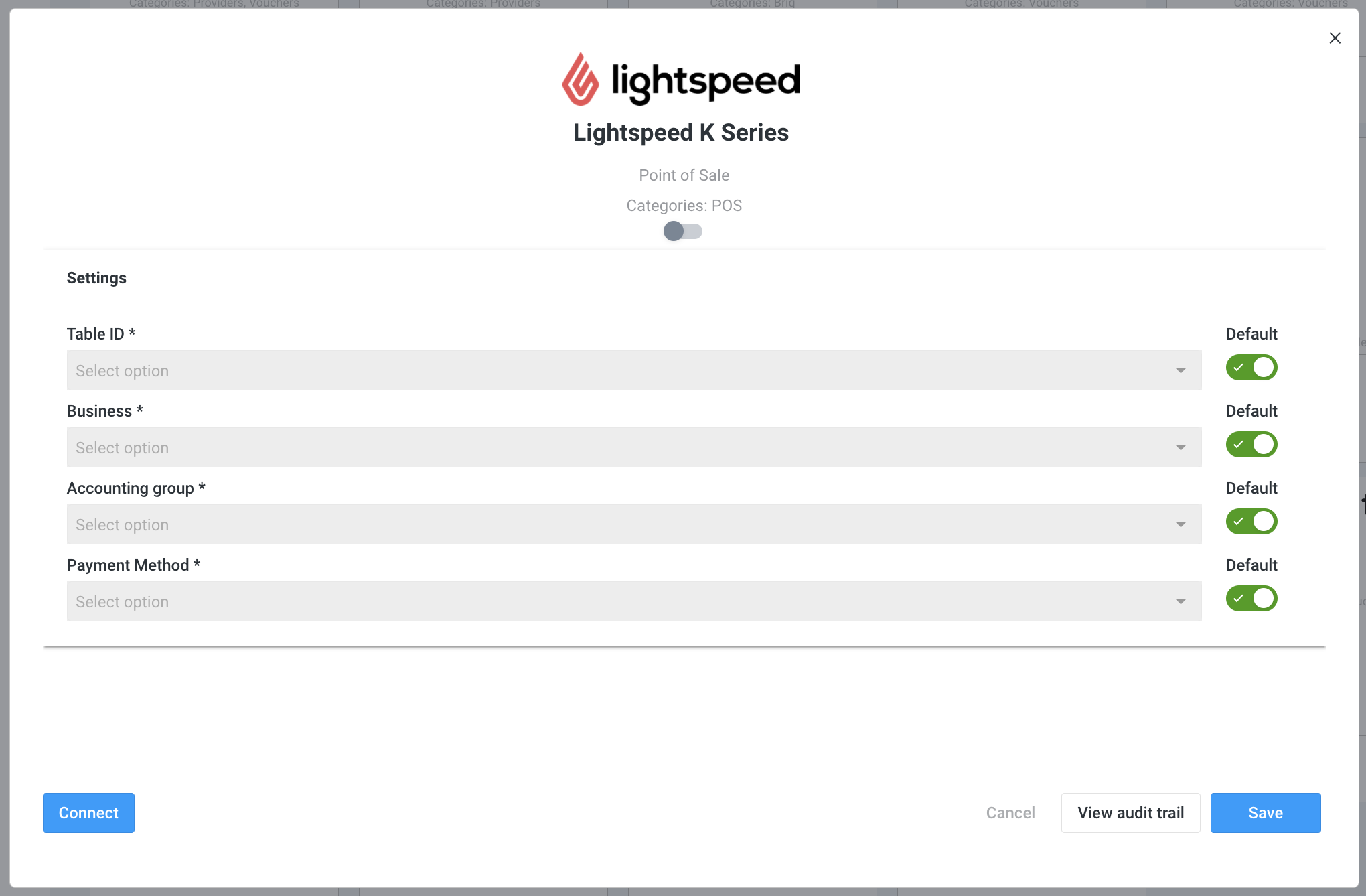
- Click on Connect
- You will now be redirected to Lightspeed, log in with your Lightspeed credentials here. Once you've successfully logged in, you will be redirected back to Briq.
- In 'Business', select the business that you want to use
- Click on Save
- Click on Details on the Lightspeed K-Series tile
- In 'Table ID', select the name of the table you created in Lightspeed for the Briq orders.
- In 'Accounting group', select the name of the group with the synced Briq products.
Please note: if you use different groups (read more about this below), you only have to add the fallback group here. In case no group was selected in the created product, it will automatically be synced to this group. - In 'Payment method', select the payment method that you created for all the orders that will come from Briq
- Click on Save
That's it, you have successfully activated the integration! Everything will now be synchronized and created. Please note that this can take a couple of minutes.
Good to know
Using accounting groups in Lightspeed K-series
It's possible to connect Briq products to an accounting group in Lightspeed. For this, you have to use the integration fields (Lightspeed) in the products in Briq.app. These fields are automatically added to all products when the integration is enabled in the integration marketplace. By saving a product with a group and adding SKU, the information will be automatically synced to Lightspeed.
Please note: Every product needs a unique SKU. If you enter the same SKU for multiple products, Lightspeed will view this as the same product.
Creating an order
The moment you mark a booking in Briq.app as checked-in, the booking will be converted to an order in Lightspeed. Make sure this fact is known by all of your front-office employees, so no one forgets to initiate that action.
Troubleshooting
- When you have activated the integration, you will see new buttons in the bottom left corner of the integration tile. With these buttons, you can refresh the sync from Lightspeed to Briq.app. This can come in useful when you've created new products, payment methods, or accounting groups in Lightspeed, and you want to use these in Briq.app.

- Products with the same name are not allowed. Make sure every product has a unique name.
Should you have any questions about this topic, please do not hesitate to contact us at support@briqbookings.com or in the chat in Briq.app.
Was this article helpful?
That’s Great!
Thank you for your feedback
Sorry! We couldn't be helpful
Thank you for your feedback
Feedback sent
We appreciate your effort and will try to fix the article