Relevant to:
- Admin Briq.app users
- Employee Briq.app users
In some situations it might be more convenient to use Google Calendar to view your calendar, instead of on the Planboard in Briq.app. At the moment, Briq.app is not available on mobile phones. In case you or your employees need to be able to view bookings and the calendar on a mobile phone, this integration with Google Calendar can be very helpful.
What is Google Calendar?
Calendar is is a time-management and scheduling calendar service developed by Google. It allows users to create and edit events, add reminders, event locations, and invite other users to events. Since the calendar lives online, you can start on your computer, update it from your phone, and view it at work. Google Calendar can be accessed from your laptop, tablet, or phone. View the calendar by day, week, or month, depending on your preference.
How does the integration work?
By integrating Briq with your Google Calendar account, all of your new bookings will be turned into an event on the Calendar. As Calendar works perfectly on mobile devices, you can easily access and find all details on your calendar and bookings from the field.
Whenever a new booking is created, an event based on this booking will be added to your Calendar. This event will be created for both admin as online bookings, and will include the following information:
- Event Subject: Deal name | Number of persons | Full Name of the Main booker.
- Description:
- Booking number
- Phone number of the booker (if existing)
- Email of the booker (if existing)
- Possible booked upsells
- Total price of the booking and remaining price to be paid
- Remarks (if existing)
- Start date and time: Start date and time of the booking (the start time of the first activity. The check-in time is not taken into account).
- End date and time: End date and time of the booking.
Every time you adjust any of this information in Briq.app, the event in Google Calendar will be automatically updated. If you edit the booking status to Test or Cancelled, the event will be removed from your Calendar.
Please note: every 1 minute, Briq and Calendar will sync. So when you make a change to a booking in Briq.app, this should be synced to the event in Calendar within 1 minute.
Next steps
First of all, make sure you have a Google account. Then, you can activate the integration.
- Log in to Briq.app
- Click on Settings
- Click on Integrations
- Click on Details on the Google Calendar tile
- Click on the button "Sign in with Google"
- Choose the Google Account you want to connect to Briq or add a new account.
- Then, it is mandatory to allow access for Briq to get your calendars and add booking events.
- View and edit events on all your calendars.
This is necessary for creating, updating, and deleting the created booking events. - See and download any calendar you can access using your Google Calendar.
This is necessary so you can choose to which of your calendars you want the booking events to be added to.
- View and edit events on all your calendars.
- When you click on 'Allow', the integration and toggle will be enabled.
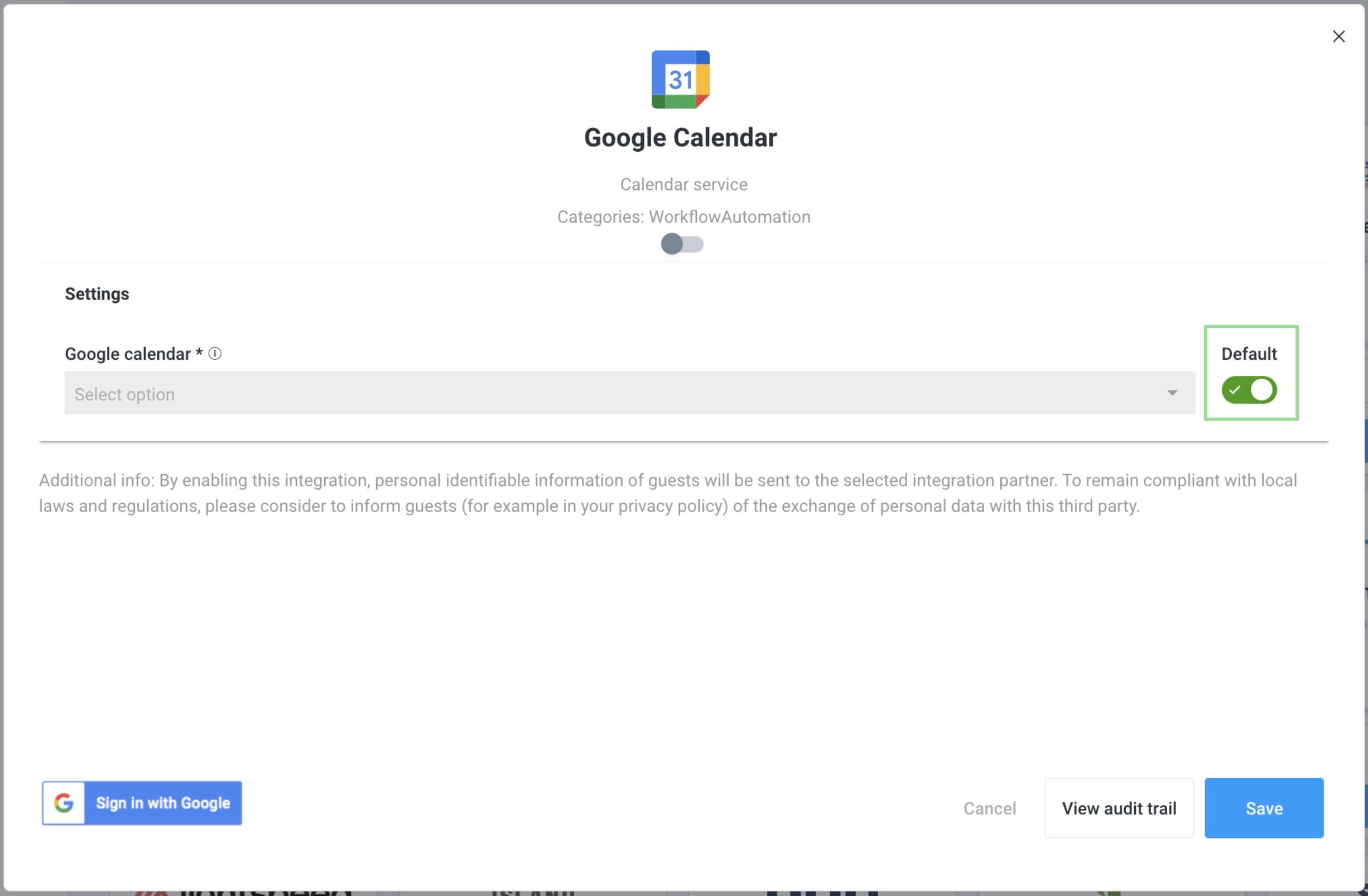
- Now it's time to select which of your calendars you want the bookings to be added to. For this, disable the toggle on the right. Click on 'Select option' to open the list with your calendars, and choose your preferred calendar for the booking synchronization.
- Did you add a new calendar after enabling your integration?
- Refresh the calendars by pressing the “Refresh Calendars” button in the Integration
- Save the Integration
- Reopen the dialog to see the updated Google Calendars
- Did you add a new calendar after enabling your integration?
- Click on Save
Congratulations, you’ve integrated Google Calendar and Briq!
From now on, new online and admin bookings with the status of Active will be added as an event to your chosen Google Calendar. Any changes to these bookings in Briq.app will be reflected to the event within one minute, so they are always up-to-date. When you change the status of a booking to Test or Cancelled, the event of this booking in your Calendar will be removed.
Should you have any questions about this topic, please do not hesitate to contact us at support@briqbookings.com or in the chat in Briq.app.
Was this article helpful?
That’s Great!
Thank you for your feedback
Sorry! We couldn't be helpful
Thank you for your feedback
Feedback sent
We appreciate your effort and will try to fix the article