Relevant to:
- Admin Briq.app users
Would you like to get extra insights about your customer’s behavior on your website and on your webshop? When you integrate your webshop with Google Analytics 4 and Google Tag Manager, you can closely measure data from your webshop, such as visitors, sessions, most popular pages, audiences, etc, in your Analytics account.
This article will guide you through the basics of these tools and will explain how you can create an account and connect them with your webshop.
Content of this article
What are Google Analytics 4 & Tag Manager?
Google Analytics is a free tool from Google, that you can use to track almost everything your visitors do on your website and webshop. Analytics' goal is to provide a clear overview of various measurable goals, in order for you to analyze these. With these insights, you can improve your website and online booking experience. You can get the answers to questions like:
- What target audience is mostly visiting my website?
- What traffic source are the visitors coming from?
- What path do they take on my website?
- Where do the visitors leave my website?
Google Tag Manager is also a free tool from Google that allows you to easily add tracking codes to your website without having to implement any extra code on your website. Google Tag Manager connects your website to Google Analytics 4 so that they can communicate with each other. This will provide you with extra data on sessions on your website and webshop.
How does the integration work?
This integration is very important for your website and webshop. When connecting Briq to Analytics and Tag Manager, you will also be able to view your webshop’s data in these tools. This will help you understand the bigger picture of your online performance, as you can track who visits your website and webshop, where they come from, and what they do.
Google Tag Manager will ensure that we view your customer’s sessions on your website and webshop as one, instead of two separate sessions. This will keep your data clean.
We highly recommend using these services as they offer you more information about your customers. Google Analytics is handy as you can also measure how your customers respond to new offers and changes on your website and webshop. With this information, you can ensure that you cater exactly to your customer's needs which should result in a higher conversion rate.
Next steps
To measure e-commerce in Google Analytics 4, a number of tags, triggers and variables will need to be placed in Google Tag Manager. You can create this yourself or import the container from Briq Bookings.
Import Google Tag Manager container:
- Go to your Google Tag Manager (tagmanager.google.com)
- Go to Admin
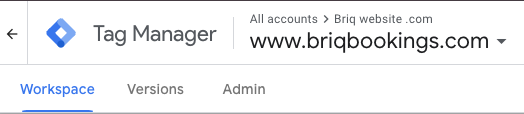
- Choose Import Container
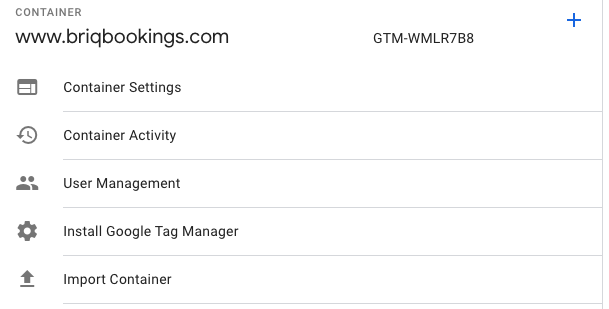
- Click on Choose container file and Open the Briq file (you will find this in the attachments)
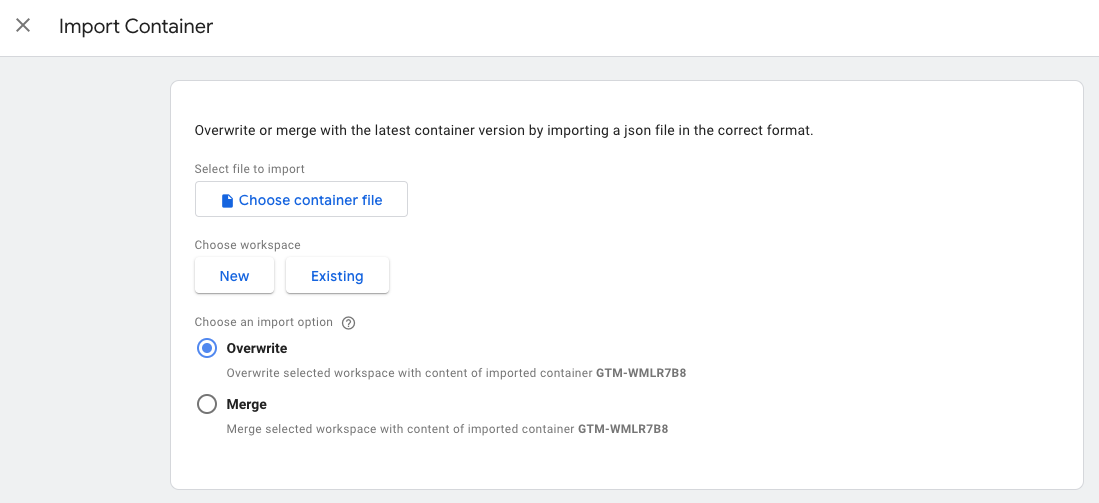
- Click on Choose Workspace and choose New, then give this new workspace a name (for example: E-commerce briq) and click Save

- Choose Merge, check whether you should choose Overwrite or Rename. Check View Detailed Changes to see if any changes are being made with the merge. If there are modified or deleted tags, triggers or variables, it is good to note the relevant measurements and test them additionally. For example, there may be tags that use the same names that may require adjustments.
- Choose Confirm
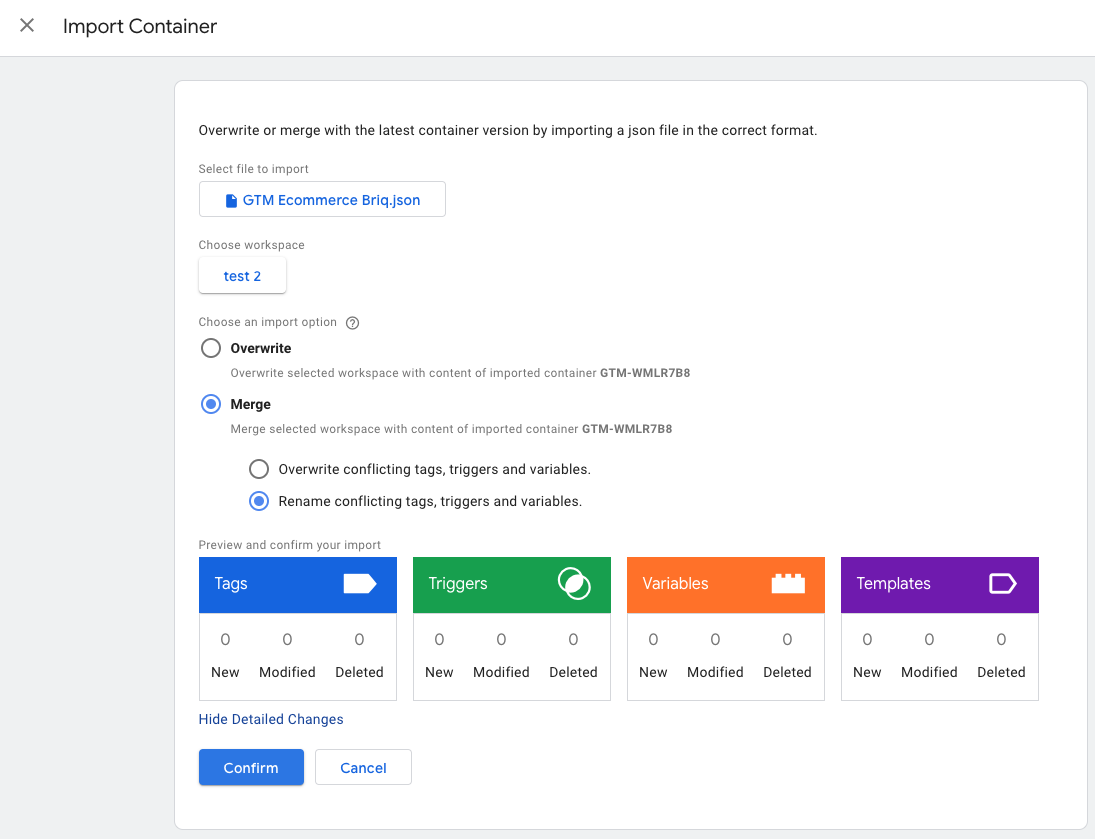
- Nothing is going live yet. So you can first test everything in Preview
- Place your Google Analytics Measurement ID in the next 2 tags
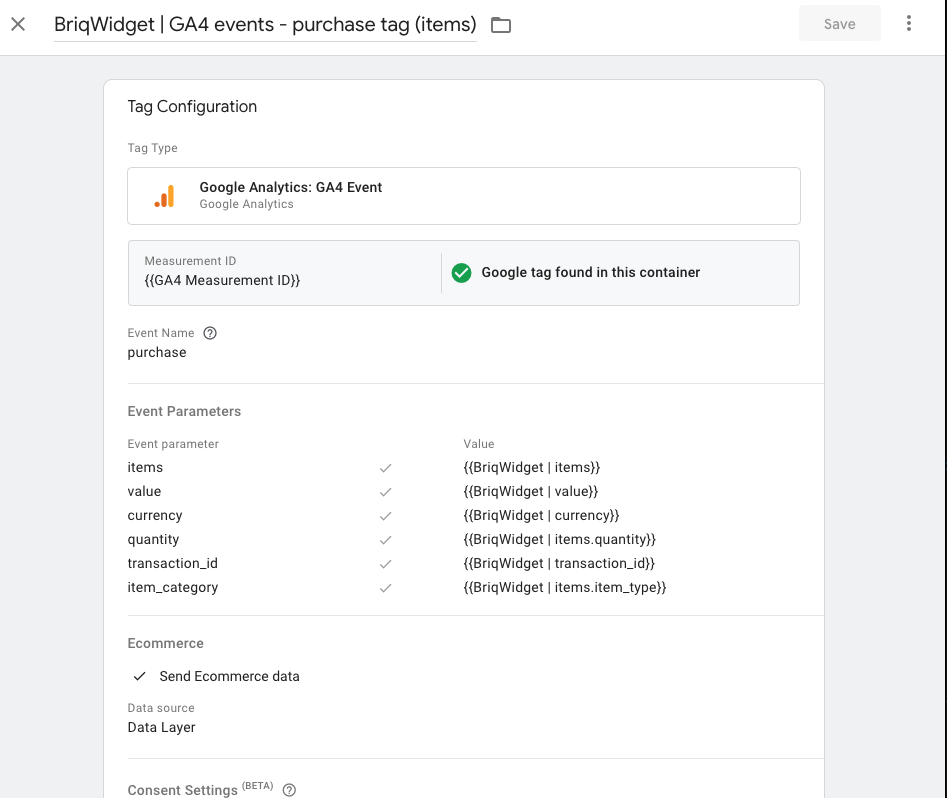
- BriqWidget | GA4 events - purchase tag (items)
- BriqWidget | GA4 events - tag (items)
{{GA4 Measurement ID}} needs to be replaced with your Google Analytics Measurement ID. Need help finding your ID: https://support.google.com/analytics/answer/12270356?hl=en
- Test the pixels in preview. Also check whether your other tags (like Facebook or Google Ads) still work.
- Submit and Publish the workspace.

If you choose to add the tags, triggers and variables yourself, you can find them in this article.
Should you have any questions about this article, please do not hesitate to contact us at support@briqbookings.com or in the chat in Briq.app. Good luck!
Was this article helpful?
That’s Great!
Thank you for your feedback
Sorry! We couldn't be helpful
Thank you for your feedback
Feedback sent
We appreciate your effort and will try to fix the article